
Why Your Smart Home Devices Keep Dropping Off the Wi-Fi
The smart plug in the spare room has stopped answering. The camera by the back door says "offline" in the app but the light on it is on. The robot vacuum will not start from your phone, though it worked last week, and the speaker in the kitchen has decided it is no longer part of the household.
Nothing is broken. This is what happens when a home network designed for a handful of laptops is asked to carry thirty small, cheap, low-power radios that all want the same slice of airtime. Smart home devices fail in a distinctive way — intermittently, one at a time, and never while you are watching — and the causes are consistent enough to work through methodically.
Nearly all of them are stuck on 2.4GHz
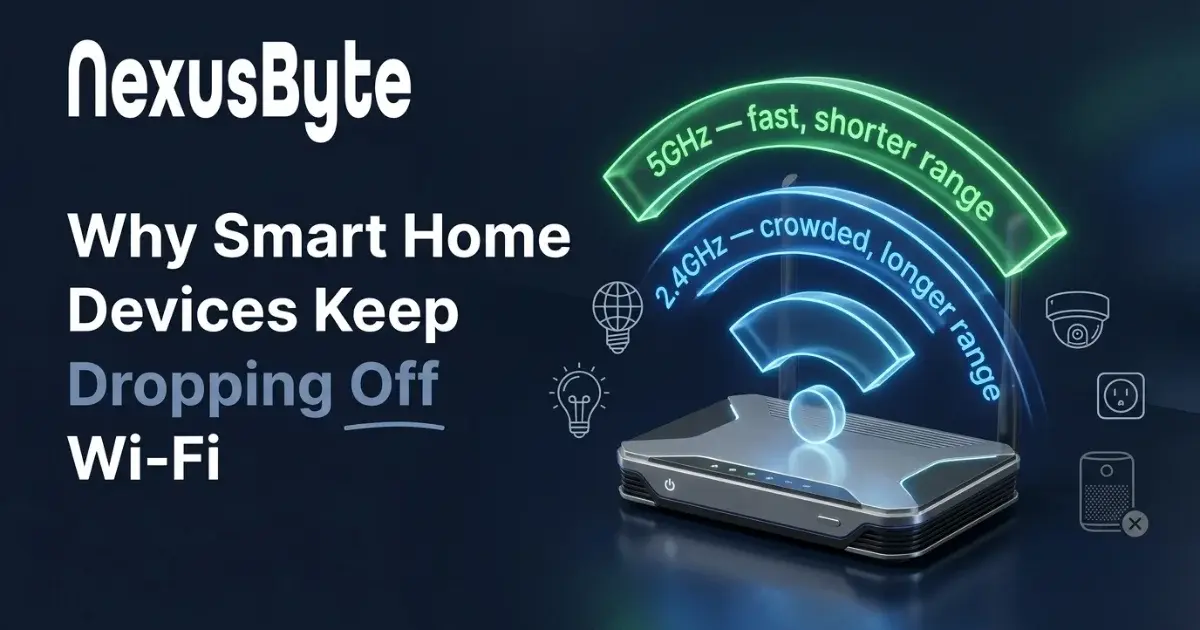
Wi-Fi runs over more than one frequency band, and the difference matters more here than anywhere else in the house. The 2.4GHz band travels further and passes through walls better but is slower and badly congested. The 5GHz band is much faster and cleaner but has noticeably shorter reach.
The overwhelming majority of smart devices — plugs, globes, sensors, most cameras, many speakers — support 2.4GHz only. Multi-room audio is a special case worth reading separately, since a speaker that drops out takes a whole group with it: Sonos installation and common problems covers what causes it. It is cheaper to build, it uses less power, and range matters more than speed for something sending a few bytes to say a door opened. So while your laptop enjoys a quiet 5GHz lane, your entire smart home is crowded onto the noisy one.
And 2.4GHz is genuinely noisy. It is shared with microwave ovens, cordless phones, baby monitors, Bluetooth, and every neighbouring network within range. In a Sydney apartment block you may be competing with twenty other households on the same handful of channels. Devices with tiny antennas and no ability to complain simply drop off and try again later.
The single network name that breaks setup
Modern routers usually present both bands under one network name and decide for you which one a device should use. This is called band steering, and for phones and laptops it works well.
For smart devices it causes two distinct problems. During setup, a device that only understands 2.4GHz often cannot join a network whose name is being advertised on both bands — the pairing simply fails, with an unhelpful error, and people conclude the device is faulty. After setup, band steering may try to move a device that cannot follow, and it falls off.
The fix is straightforward on most routers: either split the bands into two clearly named networks, or create a dedicated 2.4GHz network for smart devices. It is a change our remote IT support team makes regularly without needing to attend. It is a small configuration change that resolves a startling proportion of "this device will not connect" complaints. Some routers also allow a temporary 2.4GHz-only mode purely for pairing, which is enough if you would rather keep one network name.
Your router probably has fewer seats than you think
Every router has a practical limit on simultaneous connections, and it is usually far lower than the marketing suggests. A unit supplied with a broadband plan a few years ago may become unstable well before you reach the number printed on the box, because the constraint is memory and processing rather than the radio.
Count honestly. Phones, tablets, laptops, two televisions, a streaming stick, a console, a printer, a doorbell, four cameras, six plugs, eight globes, a vacuum, a thermostat, a couple of speakers. Households pass forty devices without noticing, and the symptom of a router at its limit is exactly what people report: everything works, but something small is always offline, and which thing changes daily.
If your device count has doubled since you got the router, that is the most likely single explanation, and no amount of reconnecting will fix it.
Signal that is good enough to connect but not to stay
Smart devices are installed where the job is, not where the coverage is: a camera under the eaves, a sensor in the garage, a plug behind a fridge, a globe in a downstairs bathroom. These are the worst positions in the house for signal, and the devices themselves have small antennas and little transmit power.
The result is a device that connects during setup — when you are standing next to it with the router two rooms away — and then struggles in daily use. Metal is the usual aggravator: a camera on a metal bracket, a plug behind a steel appliance, a sensor inside a metal meter box. Brick, concrete and foil-backed insulation all take their toll too.
The answer is usually coverage rather than the device. An access point closer to the problem area, properly connected back to the router, turns a marginal position into a comfortable one. That is design work, and it is what our WiFi and home networking service is for — particularly in the double-brick homes that are common across Sydney.
Firmware, and the devices nobody updates
Smart devices receive firmware updates, and almost nobody installs them. Manufacturers routinely ship fixes for exactly the reconnection bugs described here, and a device two years behind may be failing for a problem solved long ago.
Check the app for each brand and update what you find. Update the router too, since its firmware governs how it handles many simultaneous clients. Televisions and media devices are the ones most often left years behind, which a smart TV and home theatre setup sorts out along the way. And when a device reaches the point where the manufacturer stops updating it, treat that as meaningful — an unsupported camera or lock on your network is a security question as much as a reliability one.
A sensible order to work through
If several devices are misbehaving, resist replacing them one at a time. Work down this list instead:
- Count your connected devices. If the number surprises you, suspect the router first.
- Split the bands, or create a dedicated 2.4GHz network, and re-pair the stubborn devices to it.
- Check signal strength at the actual location of each failing device rather than at the router.
- Update firmware on both the devices and the router.
- Look for a pattern in time. Failures clustered in the evening point at congestion; failures spread evenly point at coverage or capacity.
That order works because it deals with the causes that affect everything before the ones that affect one thing.
Building for the number of devices you will have
The deeper issue is that most homes never designed for this. A network assembled around a laptop and a phone is now running lighting, security, entertainment and climate control, and the consequences of it failing have grown accordingly. A dropped video call is irritating; a smart lock that will not respond, or a camera that was offline during the one hour you needed it, is a different matter.
Building properly means enough capacity for the devices you will have in three years, coverage that reaches the edges where the devices actually live, and ideally keeping the smart devices on their own network so an insecure globe is not sitting alongside the laptop with your banking on it. Many of these devices never receive another security update after purchase, which is a good argument for separating them.
If you are adding devices as you go and it has begun to feel fragile, our smart home installation team can plan it as a system rather than an accumulation, and our home IT support service covers the network underneath it. It is also worth checking your connection is not the constraint — our guide to diagnosing slow NBN explains how to tell.