
Setting Up a New Office Network: The Checklist Before the Movers Arrive
An office move has a hundred moving parts, and the network is the one that cannot be fixed on the day. Furniture can be shuffled, the coffee machine can arrive a week late, but if the internet is not connected or the desks have no data points, nobody works. Most of the problems we are called to fix in new offices were decided, by default, in the weeks before the move when nobody was thinking about them.
This is the list to work through before the fit-out closes the walls. It is written for a business of five to fifty people moving into a shop, a suite or a floor, and it is in the order the decisions actually need to be made.
1. Order the internet connection now
This is first because it has the longest lead time and the least flexibility. A business NBN or fibre connection to a new tenancy can take two to six weeks, longer if the building needs new infrastructure, and nothing else on this list matters until it exists. Find out what the building has: NBN, and which type; a fibre service already run to the floor; or only the landlord's shared connection. Order the service, and ask where it will terminate. The connection point and your comms rack need to be in the same room, or close to it, and that decides where the rack goes.
For a business that cannot afford a dead morning, order a second, different connection as well: a 4G or 5G service or a second provider, so that an outage on one does not stop trading. The earlier piece on what happens when the business internet drops covers how the failover is set up so that nobody has to notice.
2. Decide where the rack lives
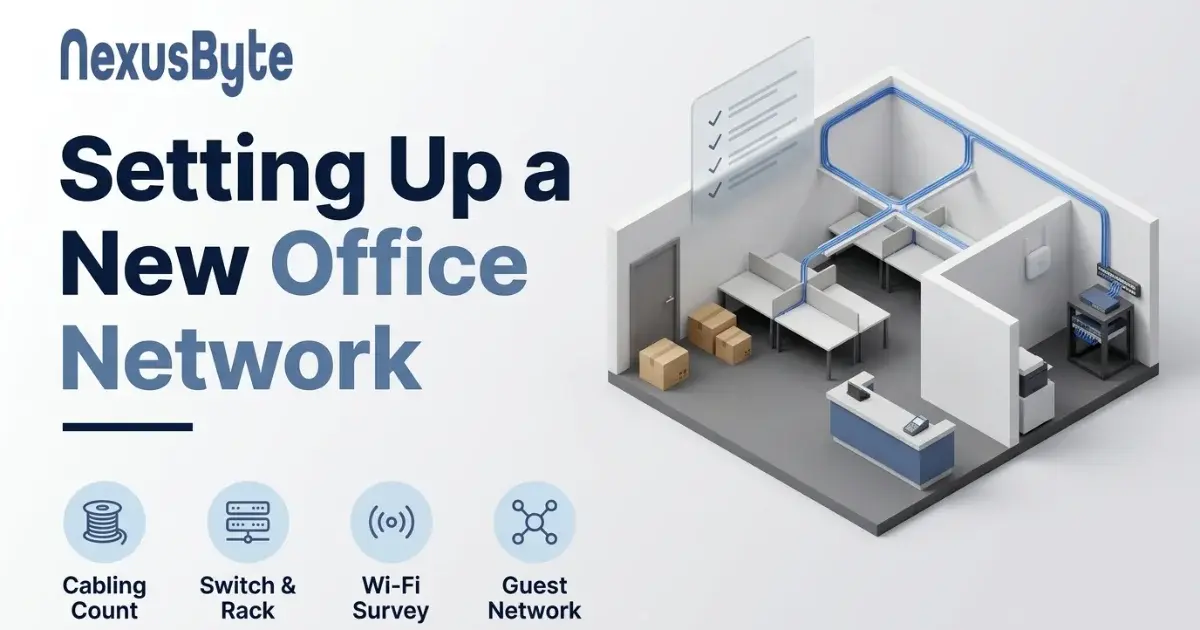
Every cable in the office runs back to one place, so that place is chosen once. It should be a lockable cupboard or small room, not a kitchen cupboard, with a double power point, some ventilation, and no water pipes overhead. It needs to be reachable by cable from every desk without a run longer than ninety metres, which in a normal office is every corner of the floor. A wall-mounted cabinet is enough for most small businesses; a floor-standing rack is for offices with servers or a lot of equipment. Settle this before the builder finishes the plan, because the data cabling, the power and the air all have to meet there.
3. Count the cable drops, then add half again
Walk the plan and mark every place that will ever need a wired connection: each desk (two points per desk, not one, so a docking station and a phone or a second machine do not fight over it), the meeting room table and screen, the reception counter, the printer locations, the EFTPOS terminal, every ceiling point where a Wi-Fi access point will go, each security camera, the television in the break room, the door controller, and the comms room itself. Then add fifty per cent for the desks that will be added, the hot-desking area that will appear, and the wall that will turn out to be the only sensible place for something.
Cable is cheap while the walls and ceiling are open and expensive the day after. Every run should be Cat 6 or better, terminated on a labelled patch panel in the rack and a labelled wall plate at the other end, and tested and certified by the cabler with a written result. A cabler licensed for Australian telecommunications work is a legal requirement, not a preference. Our network installation and cabling service handles the design and the certified runs, and the sentence we hear most often a year later is "I wish we had put in more points".
4. Size the switch, and get PoE
The switch is where all those cables plug in. Count the drops, add the uplinks, and buy a switch with at least a quarter more ports than you need today. Buy a business switch, not a consumer one; the difference is management, reliability and the ability to separate traffic, which matters in the next section. Specify Power over Ethernet on enough ports to run the access points, the desk phones and the cameras from the switch, so none of them needs a power point of its own. Gigabit to every desk is standard; a faster uplink between the switch and the rack equipment is worth it if files are large.
5. Plan Wi-Fi from a survey, not a guess
Office Wi-Fi is done with ceiling access points fed by those cable runs, one per roughly every hundred to a hundred and fifty square metres of open office and more where there are walls, meeting rooms and a kitchen full of microwaves. The router that came with the internet plan is not an office Wi-Fi solution, and neither is a consumer mesh system. The number and position of the points comes from a survey of the actual floor, done before the ceiling closes so the cable runs can go to the right spots. The same considerations as a difficult house apply, and the article on Wi-Fi for a large or multi-storey home explains why ceiling-mounted wired points beat anything on a shelf.
6. Separate the traffic that must not mix
A new office is the one chance to set the network up properly rather than as one flat pool where the guest in reception sits beside the EFTPOS terminal and the accounts computer. Plan four networks from the start: staff, guest, payments, and devices such as cameras and printers. They run over the same switch and the same access points, kept apart by configuration. The guest network gets internet and nothing else. The EFTPOS terminal and anything handling cards sits on its own, which the payment card standards expect. The cameras and smart screens, which are the least trustworthy devices in the building, cannot reach the file server. The earlier piece on guest Wi-Fi, EFTPOS and staff on one network covers why this matters and how it is done without stopping trading.
7. The firewall is not the modem
Between the internet connection and the switch sits the firewall, and in most small offices it is whatever router the provider sent, with the default password still on it. A business firewall does the separation above, lets staff connect securely from home, filters the obvious threats, and gives you a log when something goes wrong. It is sized to the business, and it is the single piece of equipment that decides whether the segmentation in step six actually holds. The firewall and network protection page explains what a proper deployment includes.
8. Place the shared equipment deliberately
- Printers go where the people who print them are, on a wired point, on the devices network, with a fixed address so nobody has to re-add them every month.
- EFTPOS goes on a wired point at the counter wherever possible, on the payments network. A terminal on Wi-Fi is a terminal that drops out at the busiest moment.
- Desk phones, if the business still uses them, run on the data cabling with PoE; a separate phone cabling system is a thing of the past.
- Meeting room screens need a wired point behind them and, usually, a power point and an HDMI run that someone has to think about before the wall is closed.
- Cameras and door access need a cable each, PoE, and a place on the devices network. Decide where they go now, because the cable runs are the expensive part.
9. Backup power and the things people forget
A small uninterruptible power supply in the rack keeps the firewall, switch and access points alive through the brief outages that otherwise reboot everything and drop every call in the office. It also lets equipment shut down cleanly in a longer one. Beyond that: a label on every cable at both ends, a document that says what plugs into what, a spare patch lead or two in the cupboard, and the admin passwords written down somewhere the business owner can find them rather than only in the head of whoever set it up.
If the business is also moving its server, its backups or its email, those are their own projects with their own lead times, and the business network support page is the starting point for a move that includes them.
10. Test before the first day, not on it
In the last week before the move, with the furniture in and the cabling certified, everything gets tested by someone whose job it is. Internet speed at the rack and at the furthest desk. Every data point, plugged in and confirmed live and labelled. Wi-Fi coverage walked with a meter in every room including the toilets and the stairwell. The guest network confirmed unable to reach anything internal. The printer found from a staff laptop and not from a guest phone. The EFTPOS terminal processing a test transaction. The phones ringing. A camera recording. The failover connection taking over when the main one is unplugged. Then, on the morning, staff arrive, sit down, and work.
The short version
Order the internet now. Pick the rack location while the plan is still a drawing. Run more cable than you think you need, certified, while the walls are open. Buy a business switch with PoE, ceiling access points from a survey, and a real firewall. Keep guests, payments, cameras and staff apart from day one. Put a UPS in the rack and label everything. Test it all before anyone moves in.
A fit-out that follows this list produces an office network that nobody thinks about for five years, which is the only kind worth having. Most of it is decisions rather than money, and all of it is cheaper before the move than after. If you would rather have the plan drawn up and the whole thing installed and tested by one team, our on-site IT support team does new office fit-outs across Sydney, and the best time to call is before the builder starts.