

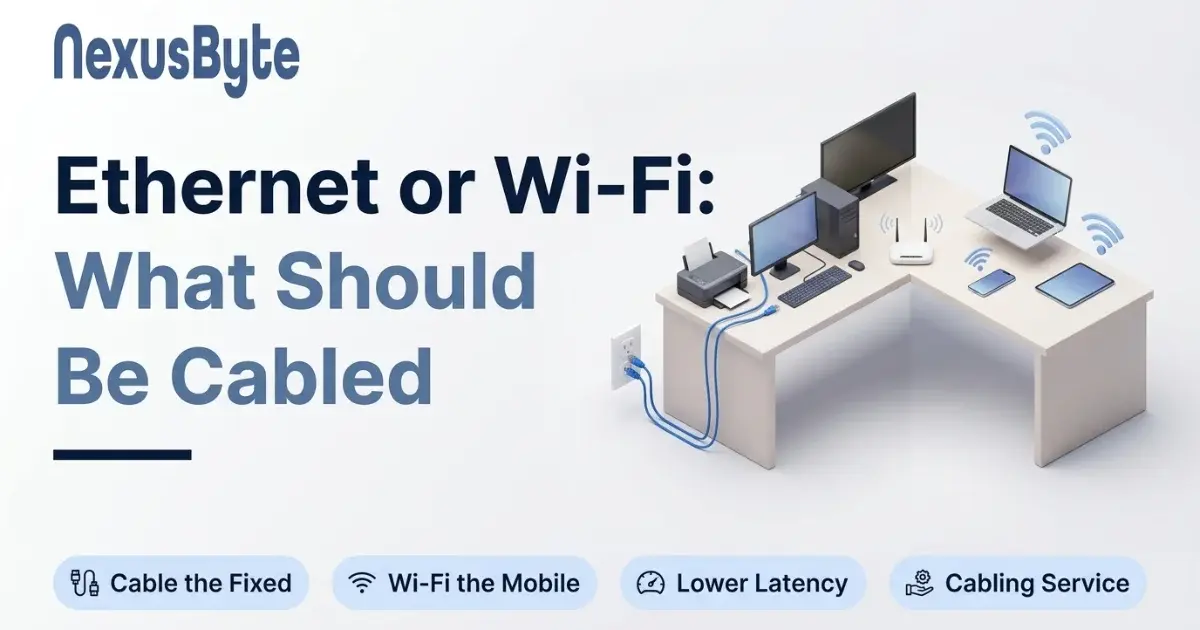
Ethernet or Wi-Fi: What Should Be Cabled in a Home and Office
Wi-Fi is so convenient that most homes and small offices run everything on it, including the desktop that has not moved in four years and the television bolted to the wall. Then the video call freezes while the kids are streaming, the console lags in the evening, the printer disappears from the network once a week, and the answer offered is a faster plan or a newer router. Neither helps, because the problem is not bandwidth. It is that the devices that never move are sharing airwaves with the ones that do.
The rule that fixes it is short: Wi-Fi is for things that move. Everything that stays put should be on a cable. This piece is about why, which devices that means, and what it actually takes to run the cables.
What a cable gives you that Wi-Fi cannot
Speed is the least of it. A modern Wi-Fi connection can be fast enough for almost anything on a good day. The difference is in the three things that make a connection feel reliable.
- Consistency. A cable delivers the same performance at midnight and at seven in the evening when every device in the house and the three houses either side are all busy. Wi-Fi shares a finite amount of radio with all of them, and gets slower and more erratic as it gets busier. A desktop that is fine during the day and unusable in the evening is on Wi-Fi.
- Latency. The delay between asking and getting an answer is a millisecond or two over a cable and anything from five to a hundred over Wi-Fi, varying moment to moment. That variation is what makes a video call stutter, a remote desktop session feel like treacle, and a game feel unfair. It cannot be bought away with a faster plan, because the delay is between the device and the router, before the internet is involved at all.
- Drop-outs. A cable does not drop. Wi-Fi devices roam, re-associate, fall back to slower speeds in interference, and occasionally lose the connection entirely for reasons nobody can see. A printer that vanishes, a camera that stops recording, a smart TV that needs a reboot every week: nearly always wireless, nearly always cured by a cable.
There is also a quieter benefit. Every fixed device moved off Wi-Fi is one fewer thing competing for the radio, so the phones and laptops that genuinely need Wi-Fi get more of it.
The devices that should always be cabled
Walk through the house or the office and sort devices into two piles: things that move, and things that do not. The second pile is the cabling list.
- The work-from-home desk. First on the list, every time. A laptop on a docking station with one cable to the wall gets a stable video call, a reliable VPN, and a remote desktop that does not lag, and the only thing that changes about the laptop is that it works properly. If the household has one cable run in it, this is the one.
- Desktop computers, including the children's gaming PC and the iMac in the study.
- Televisions and streaming boxes. Four hours of 4K in the evening is the heaviest, most sustained load most homes put on the network, and it belongs on a cable rather than fighting the laptops for air.
- Game consoles, where latency is the whole experience.
- Printers. The single most common "it keeps disappearing" device, fixed permanently by a cable and a fixed address.
- Network storage and backup drives. A NAS on Wi-Fi is a NAS that backs up slowly and unreliably, which is the one thing it must not do.
- Security cameras and door controllers. Cabled, powered over the same cable, and never on Wi-Fi where they can be jammed or simply drop out.
- Wi-Fi access points themselves. The best wireless in the building is delivered by radios that are fed by cable, which the earlier article on Wi-Fi for a large or multi-storey home explains in detail.
- In an office: every desk, the EFTPOS terminal, the meeting room screen, and the server. The new office network checklist covers the count.
What is fine on Wi-Fi
Phones, tablets, laptops that are carried around the house, e-readers, and most smart home devices such as speakers, lights, and plugs, which use very little data and need to be wherever they are. A laptop used on the couch is on Wi-Fi; the same laptop at the desk is on the dock and the cable. Guests are on Wi-Fi, on their own network. Anything that is not on the cabled list above, in other words, and nothing that is.
What a cabling job involves
Data cabling in a finished house is less invasive than most people expect. A cabler runs Cat 6 cable from a central point, usually where the router or a small switch sits, through the roof cavity, the subfloor or inside wall cavities to each room, and terminates it on a wall plate with one or two sockets, the same size as a power point. In a single-storey house with a roof cavity, a run to most rooms takes under an hour each and leaves nothing visible but the plate. Two-storey houses are run through the walls or a service riser; apartments and slab houses are harder and sometimes need surface-mounted conduit along a skirting board, which is still better than no cable.
A few details matter. The work must be done by a cabler registered for telecommunications work in Australia; it is a legal requirement, and an unregistered run can void insurance. Each run is tested and certified. Two sockets per plate cost almost nothing more than one and save a second visit. And a run to the ceiling of each floor, even if nothing goes there yet, is the run that makes a future access point a ten-minute job instead of another cabling visit.
Cabling is quoted per run plus the plates, so a typical home job is four to six points and an office is counted per desk, with the final figure depending on the building. It is the cheapest permanent improvement a home network can have, and the only one that does not need replacing when the next Wi-Fi standard arrives. Our home networking service includes cabling runs with the Wi-Fi work, and for a business, the network installation and cabling service does the design, the certified runs and the rack at the other end.
When you cannot run cable
Renters, apartment owners with concrete walls, and anyone whose landlord says no still have options, in descending order of quality.
- A long patch lead along the skirting. Ugly, cheap, and genuinely effective for the one device that matters most, usually the work desk. A flat cable under a rug or along a door frame is a legitimate solution.
- Powerline adapters, which send the network over the house's electrical wiring between two plug-in units. They work well on some houses and badly on others, depending on how the circuits are wired, and they are worth a try before anything wireless because when they work they behave like a cable.
- A mesh unit or access point placed in the room with the device, and the device cabled to that. The last hop is wired even if the backhaul is not, which removes the roaming and the drop-outs even though the speed is still shared.
- Wi-Fi, done as well as it can be. A current router or mesh on the right channel, placed high and central, with the fixed devices given a reserved address so they at least do not get lost.
A quick way to tell what is wrong
Before deciding anything, plug the misbehaving device into the router with a cable for a day, even if that means a lead across the floor. If the freezing, lag or disappearing stops, the problem was wireless and a permanent cable in that spot will fix it. If it does not, the fault is elsewhere, in the internet connection, the plan or the device, and no cabling will help. The article on why your NBN is slower than your plan covers that half of the diagnosis.
The short version
Cable the desk, the desktop, the TV, the console, the printer, the storage, the cameras, and the Wi-Fi points. Leave the phones, tablets and wandering laptops on Wi-Fi. Have the runs done once, properly and certified, and the network stops being something anyone has to think about. If you want the house or the office walked and the runs planned and installed in a single visit, our home office setup team starts with the desk, and bookings are online.