

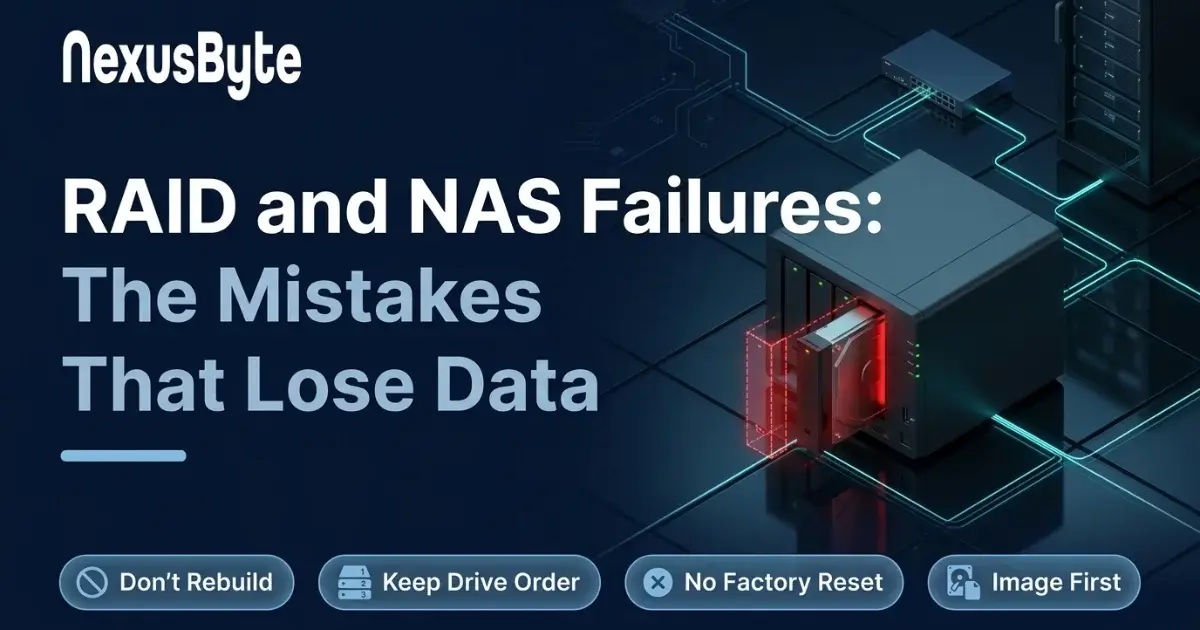
RAID and NAS Failures: The Mistakes That Turn a Recoverable Array Into a Lost One
The light on the NAS has gone from green to orange, or red. The web interface says the volume is degraded, or crashed, or simply that there is no volume at all. The shared drive that every computer in the office maps on startup has vanished, and the person who set the thing up three years ago is on holiday, or has left, or was you.
Here is the thing worth holding onto: a NAS in this state is, far more often than not, recoverable. The array has lost redundancy, not data. What happens over the next hour or two decides whether it stays that way, because the recovery actions that feel natural, and the ones the device itself suggests, are precisely the ones that cause the permanent losses we see.
What RAID actually protects against
A small business NAS, whether a Synology, a QNAP, a Western Digital or a server with a RAID card, spreads your data across several drives with enough extra information that the array survives a drive dying. RAID 1 mirrors two drives. RAID 5 stripes data across three or more with one drive's worth of parity, so one drive can fail. RAID 6 and Synology's SHR-2 use two drives' worth of parity and survive two failures. RAID 10 mirrors pairs and stripes across them.
A degraded array is one that has lost a drive and is now running without its safety margin. It is still serving your files. The data is intact. The device is telling you that it is one more fault away from not being able to serve anything, and asking you to replace the failed drive so it can rebuild the redundancy.
That is the whole of what RAID protects against: a drive failing. It does not protect against the next four things on this list, and most of the office NAS units we recover were lost to one of them.
The five mistakes
1. Rebuilding straight away
Replacing the failed drive and letting the array rebuild is exactly what the manual says to do, and in a healthy array it is right. The problem is that the drives in a NAS were almost always bought together, from the same batch, and have spent the same years doing the same work. When one fails, the others are not far behind. A rebuild reads every sector of every surviving drive, for hours or days, which is the heaviest workload the array has had in its life. If a second drive has unreadable sectors, and on three-year-old drives it very often does, the rebuild hits them and either fails or, worse, stalls with the array now in an inconsistent state. A RAID 5 that loses a second drive mid-rebuild is a RAID 5 with no data.
The safer sequence, when the data matters, is to take a backup of the degraded array first, while it is still readable, and rebuild only after the data is safe somewhere else. If there is no second copy and the array is already struggling, stop and image the drives before anything rebuilds.
2. Pulling the wrong drive
On a degraded RAID 5 there is exactly one drive you may remove: the failed one. Pull a healthy one by mistake and the array has lost two, and it goes offline on the spot. This happens more than anyone would guess, because the bay numbering on the front of the unit does not always match the numbering in the software, and because a drive with a solid light can still be the one that has failed. Read the storage manager, note the serial number of the failed drive, and match it to the label on the drive before anything leaves its bay.
3. Changing the drive order, or moving drives to another unit
The array's layout, which drive holds which stripe and in what order, lives in metadata on the drives and in the NAS. Reinsert the drives in a different order and some units will quietly accept it and treat the array as foreign or corrupt. Move the set into a different model to "see if it reads them" and the same thing can happen. If drives have to come out, label each one with its bay number as it comes out, and put them back exactly where they were.
4. Resetting, reinitialising or reinstalling the operating system
When a NAS loses its system partition, it can boot to a setup screen as though it were new and offer to initialise the drives. A factory reset, a firmware reinstall, or accepting that offer, writes a fresh file system over the start of every drive. The array metadata and the first part of your data go with it. If the NAS is behaving as if the drives are blank, the answer is never to let it make them blank. Power it off.
5. Running file system repair, or recovery software, on the live array
A check-and-repair of the file system, offered by the device or run from a computer with the drives attached, modifies the drives to fix what it thinks is wrong. On an array with a failing member, it is writing to drives that are already struggling, and it can discard the very files you want back as "orphaned". Consumer recovery software has the same problem and one more: it does not understand the RAID layout, so it reads one drive's worth of interleaved stripes and reports a lot of unreadable files. Neither should touch the original drives.
What to do in the first hour
- Write down what you see. The exact status message, which bay is flagged, and anything the unit has emailed you. Screenshots of the storage manager are gold.
- If the array is degraded but still serving files, copy the irreplaceable data off it now, to any other drive, before you do anything else. This is the one moment where reading the array is the right call: it is the backup you do not have.
- If the array is offline, crashed, or asking to be initialised, power the unit off cleanly and leave it off. Do not reboot it to see whether it comes back. Every boot of a unit with a failing drive is another chance for that drive to die outright.
- Do not remove any drives unless you have labelled them by bay first.
- Do not buy a replacement drive and start a rebuild until the data is safe or the drives have been imaged.
Then decide how urgent it is. An office that cannot trade without the shared drive is a different situation from a home media server, and the recovery is priced accordingly, which is covered below.
How a RAID is actually recovered
Professional RAID recovery never works on the original drives. Every member drive, including the failed one, is removed, labelled, and imaged sector by sector onto healthy storage using hardware that reads around bad areas without stressing the drive. The failed drive gets the same treatment as any dead hard drive, and the earlier piece on what is and is not recoverable from a dead drive applies to it: if its heads are gone it goes through the clean room first.
With a complete set of images, the array is reassembled virtually. The RAID level, drive order, stripe size and parity rotation are worked out from the metadata or, where the metadata is damaged, from the data itself, and the images are combined in software into a single virtual volume that behaves like the array did on its best day. The file system on that volume is then read, and your folders come off it onto new storage. Nothing is written to the originals at any point, so a first attempt that needs refining can be refined without anything being lost.
This works for a drive failure, for a second drive failing during a rebuild, for a controller or NAS unit that has died with the drives intact, and for the aftermath of the mistakes above, provided they did not write over too much. It is what our RAID and NAS data recovery service does for Synology, QNAP, Drobo, Western Digital and server arrays from two drives up to the large ones.
What is not recoverable
A full rebuild that completed onto the wrong drive, a reinitialisation that ran to the end, or a long period of use after the array came back in a corrupt state, each overwrite data that cannot be brought back. A RAID 0 with a dead drive, which has no redundancy at all, is only recoverable if that drive itself can be read in the lab. And an encrypted volume, which Synology and QNAP both offer, needs its key; without it the recovery produces an encrypted image and nothing more. Keep the key somewhere that is not the NAS.
Cost and timing
The assessment is free and takes one to two business days on average: the drives are inspected, imaged where that is safe to do immediately, and you receive a written quote with a realistic statement of what will come back. Where a business cannot wait, the urgent quote for RAID and NAS units puts the array at the front of the queue and has a quote to you within about four hours; that urgent fee is the only cost paid up front, and the recovery itself is invoiced only once we have confirmed the data is recoverable. If it is not, you do not pay for the recovery.
Recovery pricing for an array depends on the number of drives, their condition and the complexity of the reassembly, which is why it is quoted after assessment rather than from a price list. The emergency data recovery page describes how the queue works when the business is down.
The NAS was never the backup
Every one of these recoveries ends with the same conversation. RAID keeps the office running through a drive failure. It does nothing against deletion, ransomware, a failed firmware update, theft, fire, or the four mistakes above, and the single most common reason an array ends up in a lab is that it was the only copy of the business.
The fix is not complicated. A second copy of the NAS, kept somewhere the NAS cannot reach: a cloud backup, a drive that is rotated off site, or a second unit at another location, with a schedule that actually runs and a restore that has actually been tested. Our backup monitoring service exists because the backup that was set up and never checked is the one that turns out to be empty, and the disaster recovery planning page covers what an office needs in place so that a dead NAS is a Tuesday morning rather than a crisis.
If the unit is sitting in front of you with its lights wrong, the sequence is short. Copy off what you can if it is still serving. Power it off if it is not. Do not rebuild, do not reset, do not reorder. Then submit a job with the drives labelled by bay, and let the images be taken before anything else touches them.