

Why You Need Professional Wi-Fi Troubleshooting Services to Stay Connected
You’ve finally sat down for your favourite show, but the screen stays black except for that mocking, spinning loading circle. For technical support, you might search "why is my internet signal dropping," assuming your provider is having a massive outage. According to common tech support data, however, the culprit is rarely the connection coming into your house. Instead, the real issue usually lies hidden within your own living space.
Think of your home connection like a plumbing system. Your Internet Service Provider (ISP) acts as the city water main delivering water to your property, while your local WiFi network is the lawn sprinkler trying to spray that water everywhere else. If your sprinkler is broken or blocked by a patio chair, your grass will dry out even if the city is pumping plenty of water. This is exactly why specialised WiFi troubleshooting services exist to figure out where the flow actually stops.
Network congestion operates similarly to a noisy dinner party. In practice, smart home experts note that if your microwave, a neighbour's router, and a baby monitor are all "talking" at once, your devices simply cannot hear your router over the chatter. That invisible traffic jam creates the frustrating lag that ruins your evening film.
Before spending money on brand-new hardware or dialling a professional, you can test a few basic solutions yourself. Taking a moment to evaluate your physical space helps identify whether you just need a quick system refresh or expert intervention. The following three steps will help clear your airwaves and get your digital life running smoothly again.
Is It a Hardware or Software Failure? Diagnosing Your Network Box Before You Call for Support
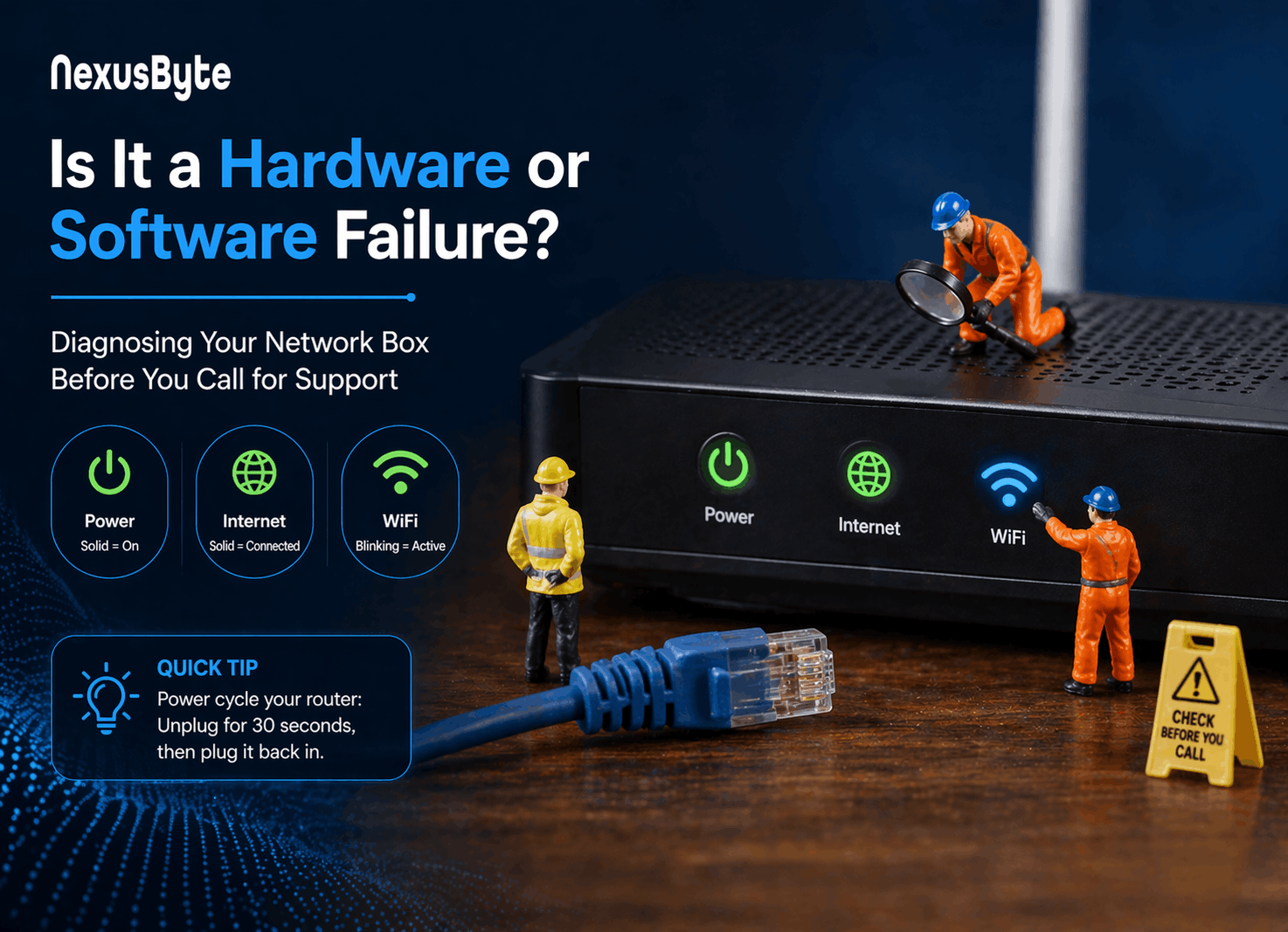
Most of us only look at our internet box when the TV buffers. When fixing slow internet speeds at home, first check the physical equipment. Place your hand on the router to feel for excessive heat, which points to hardware overheating. If the temperature feels normal, give the system a "nap" through power cycling. Simply pull the power cable out, count to 30, and plug it back in. This clears out digital cobwebs without deleting your passwords or settings.
Once the box wakes up, its lights will tell you exactly what is happening inside. Translate those dots using this checklist:
- Power: A solid light means the box is awake and receiving electricity.
- Internet: This globe icon should stay solid, meaning the internet is successfully flowing into your house from outside.
- WiFi: Usually shaped like radio waves, a blinking light means your router is actively broadcasting the signal to your devices.
Everything might look perfect on the machine, yet you still cannot connect your tablet in the kitchen. When those three lights are glowing happily, the issue is likely the physical path the invisible signal must travel.
Why Your Signal Drops Behind Brick and Water: Overcoming Physical Obstacles
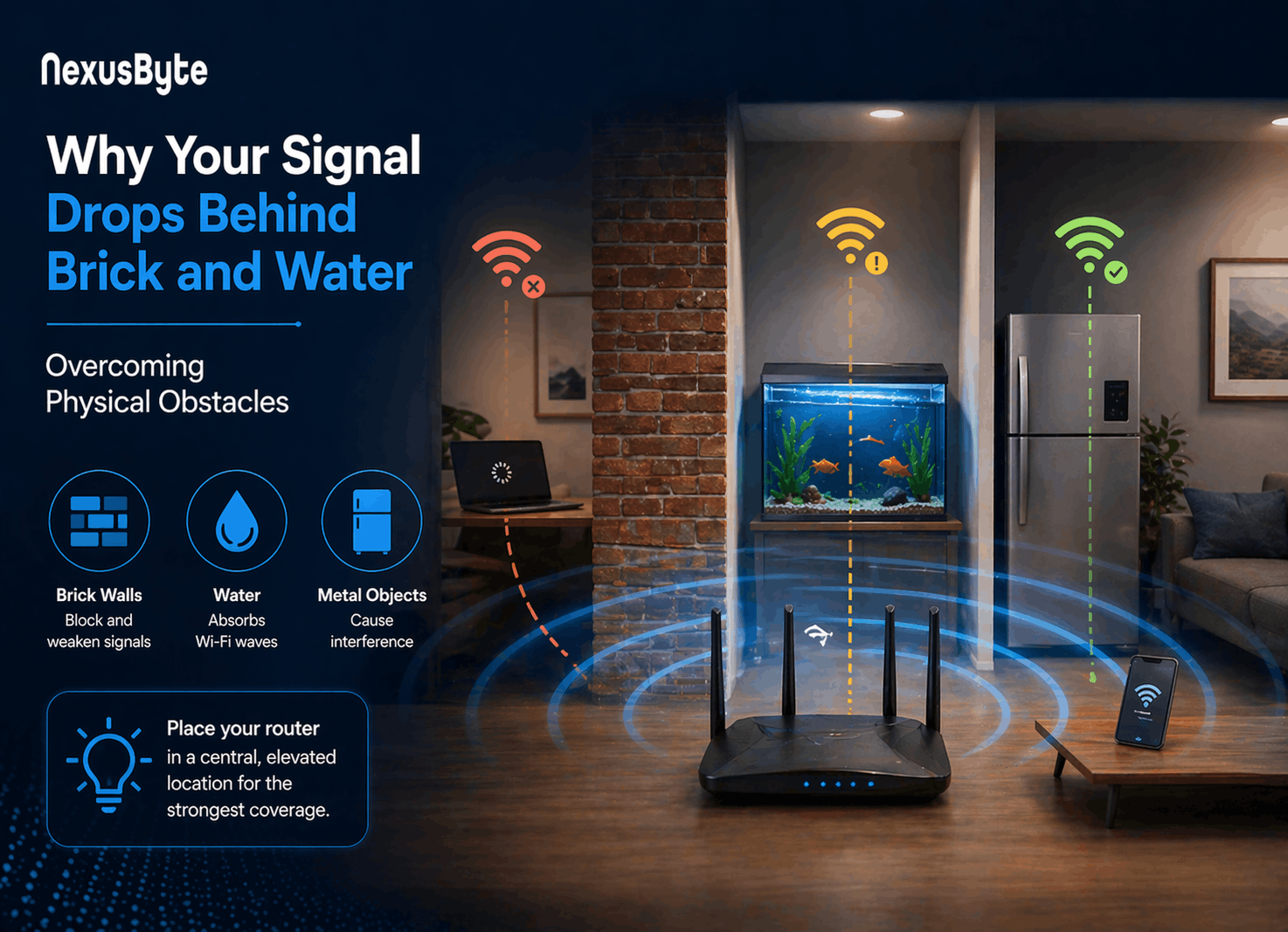
Even with all the green lights glowing on your equipment, a perfect connection can easily disappear as you walk down the hall. WiFi signals act like light from a torch; they shine brightly near the source but dim as they travel.
Signal absorption happens when everyday household objects act like heavy curtains, soaking up the invisible radio waves before they can reach your devices.
Certain building materials are notorious for eating up these waves. Dense barriers like brick fireplaces, metal appliances, and even water (like a large fish tank) cause attenuation, the technical term for a signal losing its strength. When your WiFi hits a solid wall, it doesn't just glide through freely; it loses energy, which makes improving signal strength through wall obstacles a common household frustration.
Finding the ideal spot for your hardware requires simple detective work. Map the weak areas by walking around with your smartphone and watching the WiFi icon drop. To maximise coverage, place your router in a central, elevated location—like a tall bookshelf—rather than stuffed inside a media cabinet. If tweaking this placement still leaves your bedroom disconnected, it might be time to explore professional network optimisation.
When to Hire a Pro: Understanding Professional Network Optimisation Costs and Services
You’ve moved the router, dodged the brick walls, and restarted the equipment, but that spinning wheel still interrupts movie nights. When basic tweaks fall short, it’s time to explore WiFi troubleshooting services. The process shifts here from a simple repair (fixing completely dead internet) to an optimisation (fine-tuning the connection so it reaches every room). Think of household plumbing: a repair fixes a burst pipe, while optimisation ensures you have strong water pressure in the upstairs shower.
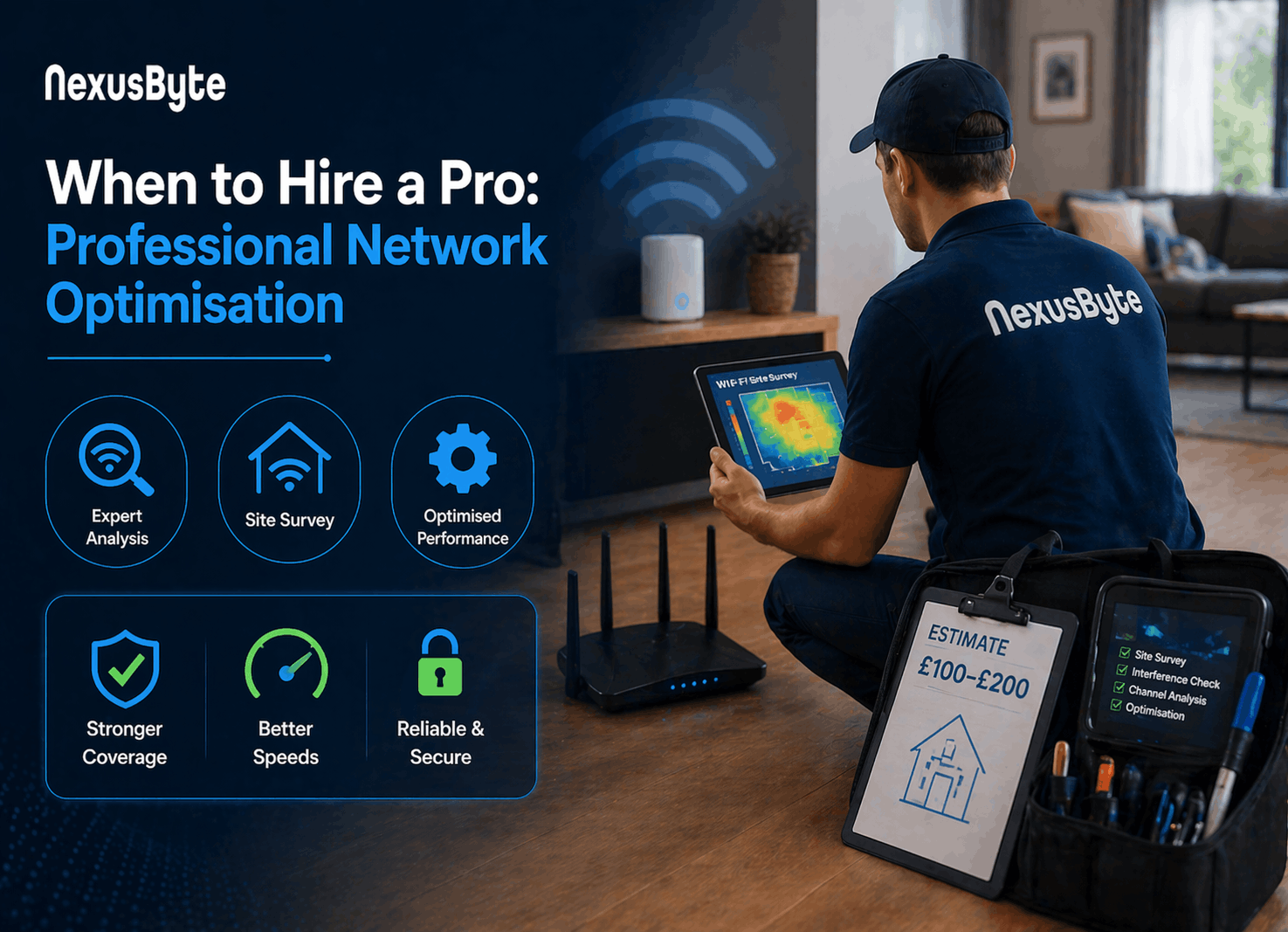
Bringing an expert in provides access to tools that go far beyond guessing. During on-site technical support for connectivity issues, a technician analyses your home's invisible environment rather than just staring at a blinking box. A standard professional visit usually includes:
- Site Surveys: Walking the property to pinpoint the exact boundaries of your dead zones.
- Interference Mapping & Spectrum Analysis: Identifying invisible "noise" from microwaves, baby monitors, or neighbours' networks that might be crowding out your signal.
- Strategic Hardwiring: Connecting heavy-use devices (like gaming consoles) directly with cables to free up wireless space for your phones.
Knowing professional network optimisation costs helps you budget smartly before making a call. Most residential visits range from £100 to £200 for an initial assessment and basic tuning, though installing new hardware or running wires will increase the price. Before booking, ask the technician if their fee includes interference mapping and if they guarantee coverage in your specific problem rooms.
Sometimes, this professional mapping reveals that a single router simply cannot cover your sprawling floor plan. When your layout is too large for one device, you may need to upgrade your hardware entirely.
Mesh Networks vs. Range Extenders: The Relay Race for Whole-Home Coverage
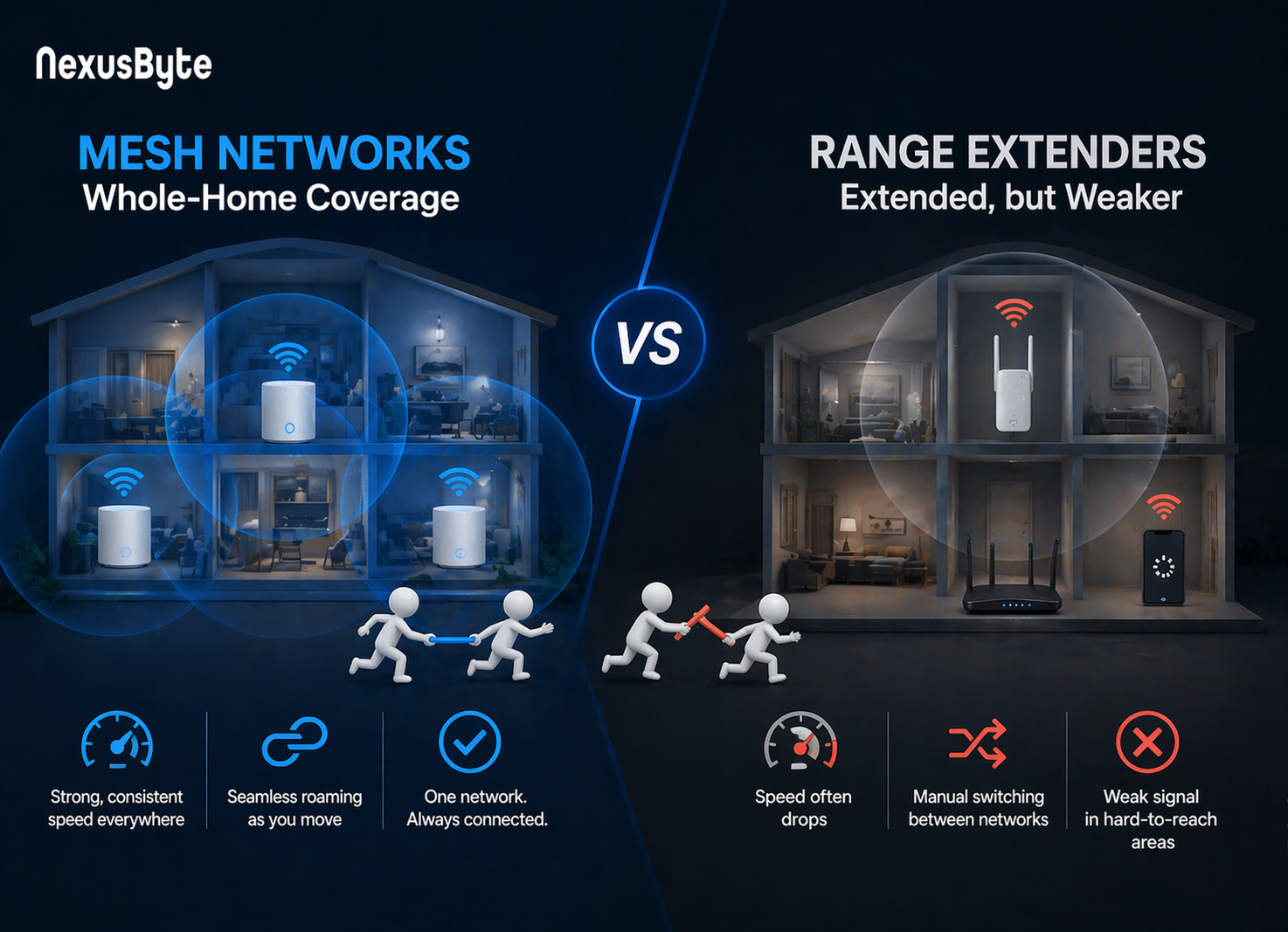
Have you ever bought a cheap plug-in device to fix a bedroom dead zone, only to find the internet agonisingly slow? That is the classic trap of traditional range extenders. They repeat your existing signal, but doing so often cuts your speed in half. When figuring out how to eliminate WiFi dead zones in larger homes, the modern answer is a mesh network.
Instead of just stretching a weak signal, a mesh system places "nodes"—miniature routers—that work together like a relay race. Making a mesh network vs range extender comparison comes down to three factors:
- Speed Loss: Extenders halve your speed. Mesh nodes maintain full speed using a dedicated background channel called a "backhaul" to talk to each other.
- Setup Difficulty: Extenders force you to switch networks manually as you walk around. Mesh provides "seamless roaming," keeping your phone connected automatically as you move between rooms.
- Price: Extenders are a cheap short-term fix, while a mesh system is a lasting investment for the whole house.
Proper placement of these devices is the secret to reliable wireless network support. If you put a node directly inside a dead zone, it has no internet to catch; place it halfway between your main router and the problem room for the perfect hand-off.
Best Router Settings for High-Speed Gaming and Buffer-Free Streaming
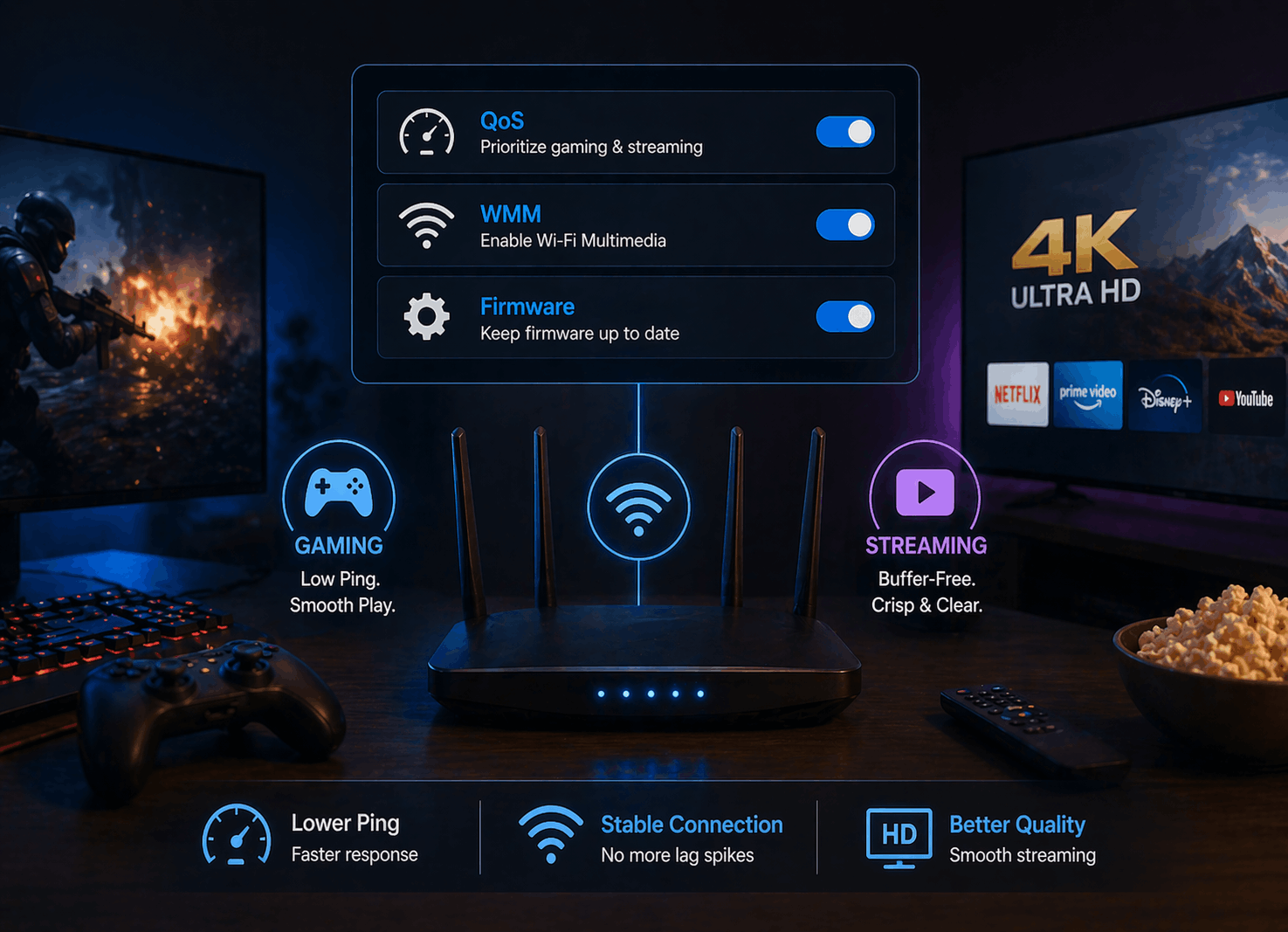
Stuttering video and laggy game matches rarely happen because your internet is too slow. The true culprits are "ping" (how fast data makes a round-trip) and "jitter" (unpredictable delays between those trips). If internet speed is how wide your motorway is, ping is how fast the cars are driving. To fix this, the best router settings for high-speed gaming focus on organising this invisible traffic rather than just buying faster internet.
Inside your router's dashboard, you can act as the traffic cop. Make these three specific adjustments to guarantee smoother performance:
- Enable QoS (Quality of Service): This setting treats your gaming console or work laptop like an ambulance, letting its data bypass regular network congestion.
- Toggle WMM (Wi-Fi Multimedia): Turn this on to automatically prioritise media, keeping audio and video perfectly synced.
- Update Firmware: Keep the router's underlying software fresh so it can process incoming data without hesitation.
Sometimes, invisible signals simply cannot overcome heavy physical interference. When analysing ethernet vs wireless latency for streaming, a physical cable plugged directly into your device always wins by providing zero-interference stability. If running a cable across the living room isn't an option, you can still improve performance by using dual-band frequencies.
Double Your Options: Using Dual-Band Frequency and Secure Guest Networks
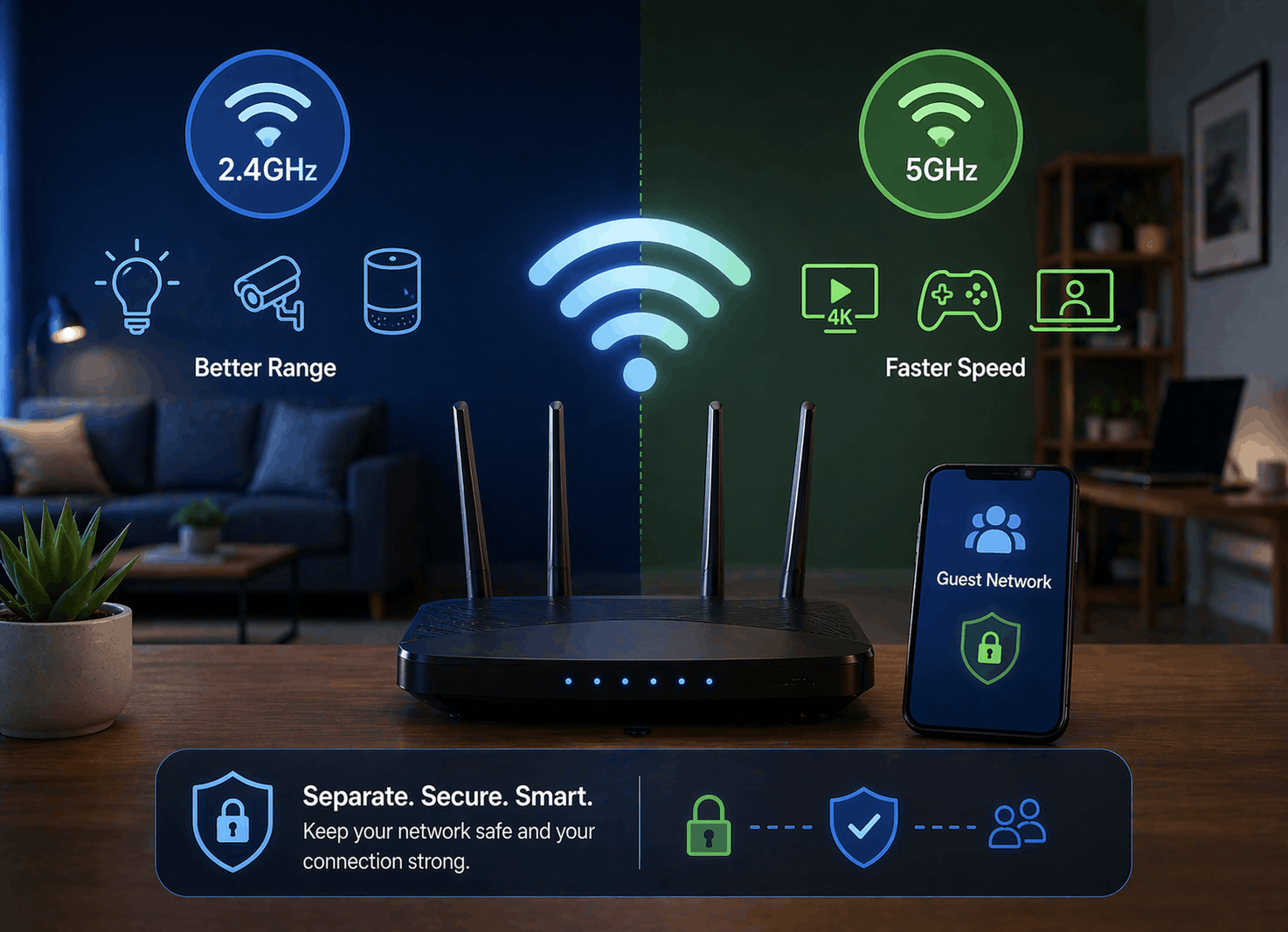
Notice two different network names on your WiFi menu? This acts like a two-lane motorway for your internet traffic. The main benefits of dual-band frequency come down to range versus speed. The 2.4GHz band is a sturdy local road; it easily passes through walls, making it perfect for basic browsing around the house. The 5GHz band is the express lane, offering incredible streaming speeds, but it struggles to reach across long distances.
Throwing every gadget into that express lane causes network congestion, bringing your connection to a halt. Smart bulbs, security cameras, and older electronics constantly "chatter" in the background, acting as common sources of signal interference. You can instantly reduce this digital noise by assigning these simple smart home devices to the longer-reaching 2.4GHz band, keeping your fast lane clear for heavy tasks like video calls.
Beyond optimising speeds, this isolation safeguards your personal data. Setting up a secure guest network gives visitors and smart gadgets their own separate connection, locking them out of the main network where your private files live.
The Maintenance Routine: Firmware Updates and Channel Tuning to Prevent Drops
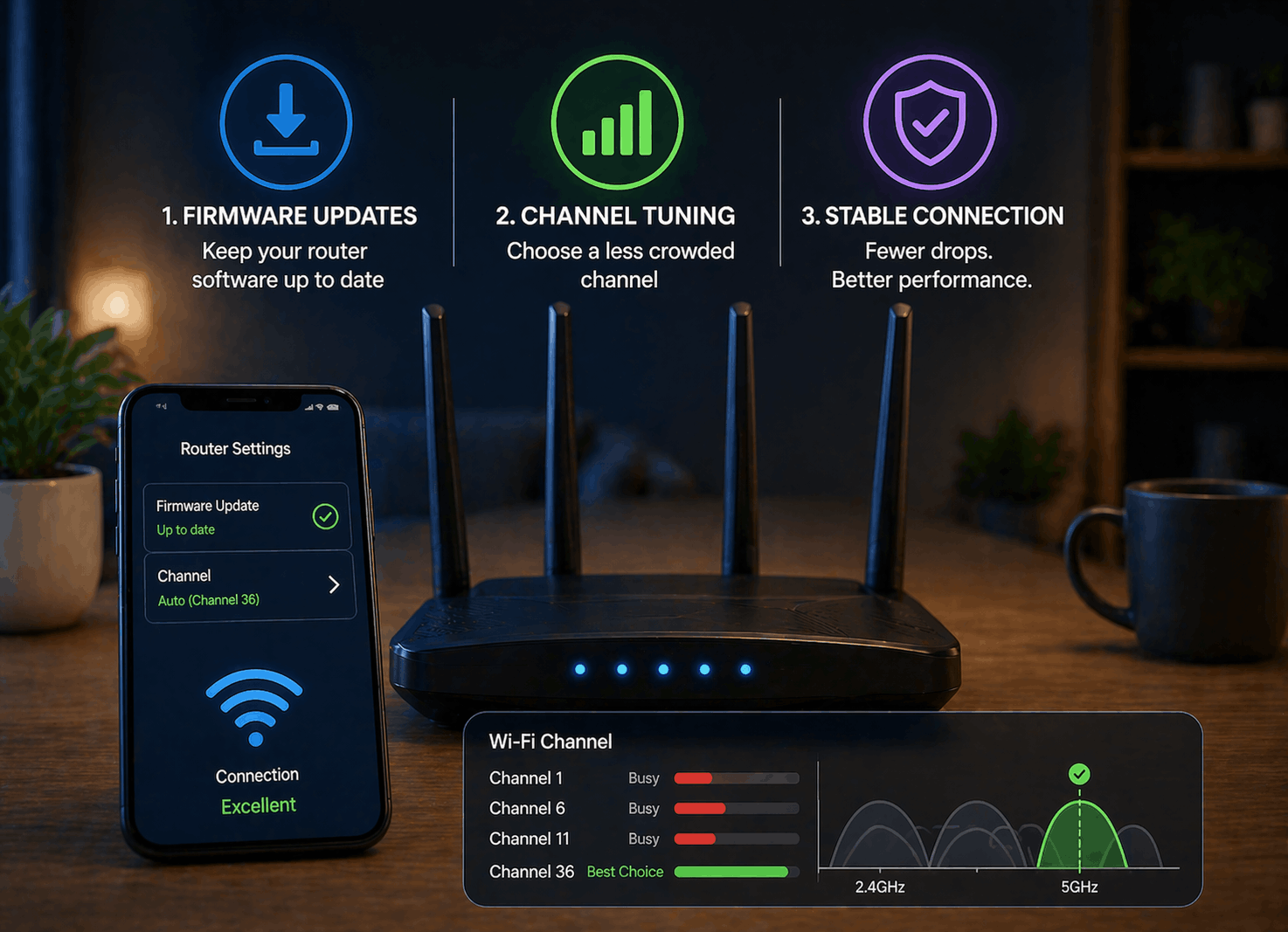
Most of us expect our internet equipment to work flawlessly without upkeep. However, your router runs on software called "firmware," and keeping it current is the secret to resolving intermittent wireless connection drops. Think of these updates like a regular car service that patches critical security holes and boosts overall performance. Setting a simple monthly "tech health" schedule to log into your settings ensures you never miss a vital fix.
Even with updated software, nearby homes can still drown out your connection. When your equipment and your neighbour's router broadcast on the exact same WiFi channel, it acts just like two local radio stations trying to play on the identical frequency. This invisible interference causes those frustrating evening slowdowns when everyone logs online. You can easily stop this digital shouting match by accessing your router settings and manually selecting a quieter, uncrowded channel.
Many modern routers also feature DFS (Dynamic Frequency Selection), an automatic tool that safely moves your network into empty, VIP frequencies. Pairing this clever setting with a basic routine of updating router firmware guarantees your hardware stays perfectly tuned.
Your 3-Step Action Plan for a Buffer-Free Home: From Professional Optimisation to Long-Term Reliability
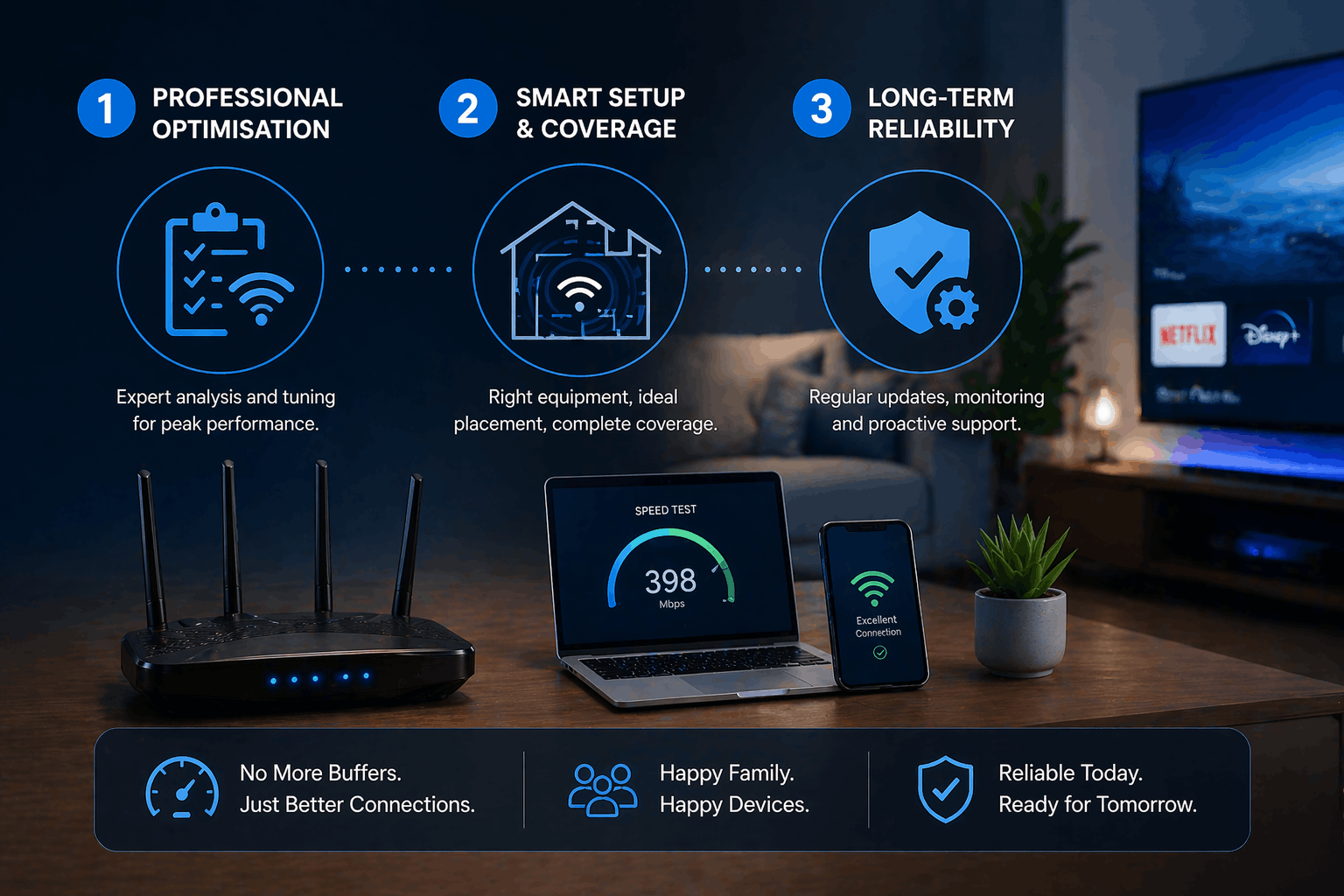
You no longer have to stare helplessly at a spinning loading wheel or accept dead zones as a permanent feature of your house. You now understand exactly how invisible signals move through your walls, giving you the confidence to create a personalised plan for home network upgrades.
To maintain high speeds with minimal monthly effort, use this basic connectivity checklist:
- Placement: Keep your router out in the open and away from large appliances.
- Updates: Restart your equipment regularly to clear out digital cobwebs and refresh the system.
- Pro-Check: Know exactly when to step back and seek expert help for fixing slow internet speeds at home.
When invisible signals clash with complex home layouts, leveraging professional WiFi troubleshooting services is your smartest move. Instead of viewing your internet as a mysterious, frustrating utility, you can now approach it as a manageable system. Whether you tackle basic tweaks yourself or rely on expert wireless network support for those hard-to-reach bedrooms, you finally have the roadmap to ensure seamless streaming and lasting peace of mind.